This guide shows you how to add your Net3000 hosted mailbox to Microsoft Outlook on Windows. It applies to Outlook 2016 and newer versions (Outlook 2019, 2021, and Microsoft 365 classic Outlook). Mail is hosted on the Net3000 Managed Email Server (mailman.net3000.ca). Outlook usually finds the settings automatically when you enter your address and password.
Use this when you are setting up the mailbox for the first time. You do not need to export or import mail.
If you already have mail in Outlook that you need to keep, follow Migrating Your Mail to Our Managed Email Server (Outlook) instead. If the address is already set up as a POP account and you only need to point it at our server, use Migrating Your Mail by Updating Your Existing POP Account (Outlook).
Before you begin
- Use the classic Outlook desktop app on Windows — Outlook 2016 and newer. These steps match Account Settings there. The “new Outlook” uses a different account screen.
- Have your email address and mailbox password ready — the ones we set up for you on mailman.net3000.ca.
- Do not add a second account with the same address if that address is already in Outlook. Remove it first, or use one of the migration guides above.
Your Net3000 Managed Email settings
Outlook fills these in automatically — use them only if you are prompted to enter them.
- Incoming (IMAP): mailman.net3000.ca — port 993, SSL/TLS
- Outgoing (SMTP): mailman.net3000.ca — port 465, SSL/TLS
- POP (only if you prefer POP): mailman.net3000.ca — port 995, SSL/TLS
- User name: your full email address Password: your mailbox password
Add your mailbox in Outlook
Step 1. In Outlook, click File, then Add Account.
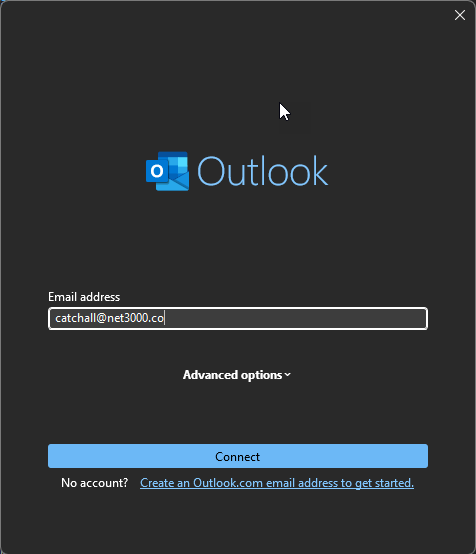
Step 2. Type your email address and click Connect.
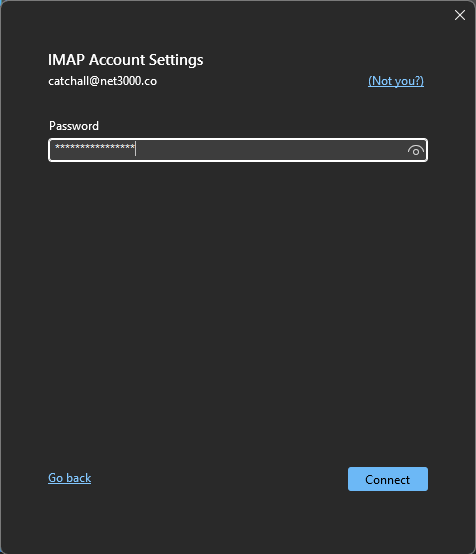
Step 3. Enter your mailbox password and click Connect. Outlook detects the server settings automatically, and your account appears in the folder list on the left.
If Outlook asks you to enter the settings manually, use the values in Your Net3000 Managed Email settings above. Choose IMAP unless you specifically want POP.
- On the Outgoing Server tab, tick My outgoing server (SMTP) requires authentication and leave Use same settings as my incoming mail server selected.
- On the Advanced tab, set incoming port 993 (IMAP) or 995 (POP) and outgoing port 465, all with encryption SSL/TLS (or “This server requires an encrypted connection (SSL)”).
Click OK, then Next (or Test Account Settings if shown), then Finish.
You can also read and send mail in a browser at https://mailman.net3000.ca.
Need a hand? Open a support ticket from your Net3000 dashboard and we will help you complete the setup.